How Can I Preview Kitchen Cabinet Colors in My Own Photo?
Preview cabinet colors in your own kitchen photo while keeping counters, appliances, and floors. Get focused prompts, fixes, and a practical sampling workflow.
Upload your kitchen photo to an AI image editor and name the cabinet surfaces and color you want to change. Include the counters, appliances, backsplash, and floor in your keep instructions. Try each color from the same original photo, then compare your favorites with paint or cabinet samples in the kitchen.
Cabinet color is easier to choose when you can see it beside your own countertop, backsplash, and floor. Try a few distinct directions—a warm neutral, a muted color, and a darker shade—before narrowing the choice to paint samples.
Start with a photo editor
ImagineMyHouse's AI Image Editor accepts JPG, PNG, and WebP files up to 10 MB. Upload your photo and describe the cabinet color in Edit instructions.
If you're also planning a new layout or a full makeover, see our kitchen design tools guide.
1. Prepare a photo that makes the boundaries clear
Choose a level, well-lit image showing the cabinets alongside the countertop, backsplash, appliances, and some flooring. Include exposed cabinet ends and the island if those surfaces need recoloring too.
Clear away a towel hiding a drawer or a chair blocking a cabinet end. Avoid filters and do not digitally brighten the photograph so aggressively that the countertop loses its original appearance.
Use the same original for each color option. Name the downloads by color, such as kitchen-mushroom and kitchen-blue-gray, so they're easy to compare.
2. Give the editor one clear color instruction
A useful prompt identifies the target, the new finish, and the surroundings to retain:
Recolor only the existing cabinet doors, drawer fronts, face frames, and exposed end panels soft mushroom beige with a satin appearance. Keep their profiles and hardware. Preserve the countertop, backsplash, appliances, floor, walls, lighting, and camera view. Do not replace cabinets or add new features.
Replace the color description with your own choice. Leave the other instructions consistent when comparing alternatives.
In ImagineMyHouse, upload the photo and paste the prompt into Edit instructions. Choose the quality, set the quantity to one for the first attempt, and check the credit amount shown on Generate before submitting. Download the result so you can compare it with your original photo.
Keep broad requests such as “luxury remodel” or “modernize everything” out of a color-only prompt; they invite changes to the rest of the kitchen.
3. Compare the color against your existing finishes
Open the original and result beside each other. Check the cabinet-door pattern, handles, appliances, and countertop first. Then compare how the new cabinet color works with the counter, backsplash, and floor.
A warm beige may pick up brown tones in a stone counter; a blue-gray may make the same counter feel warmer by contrast. If the counter looks different, check its pattern and edges to see whether it was edited or simply reads differently beside the new color.
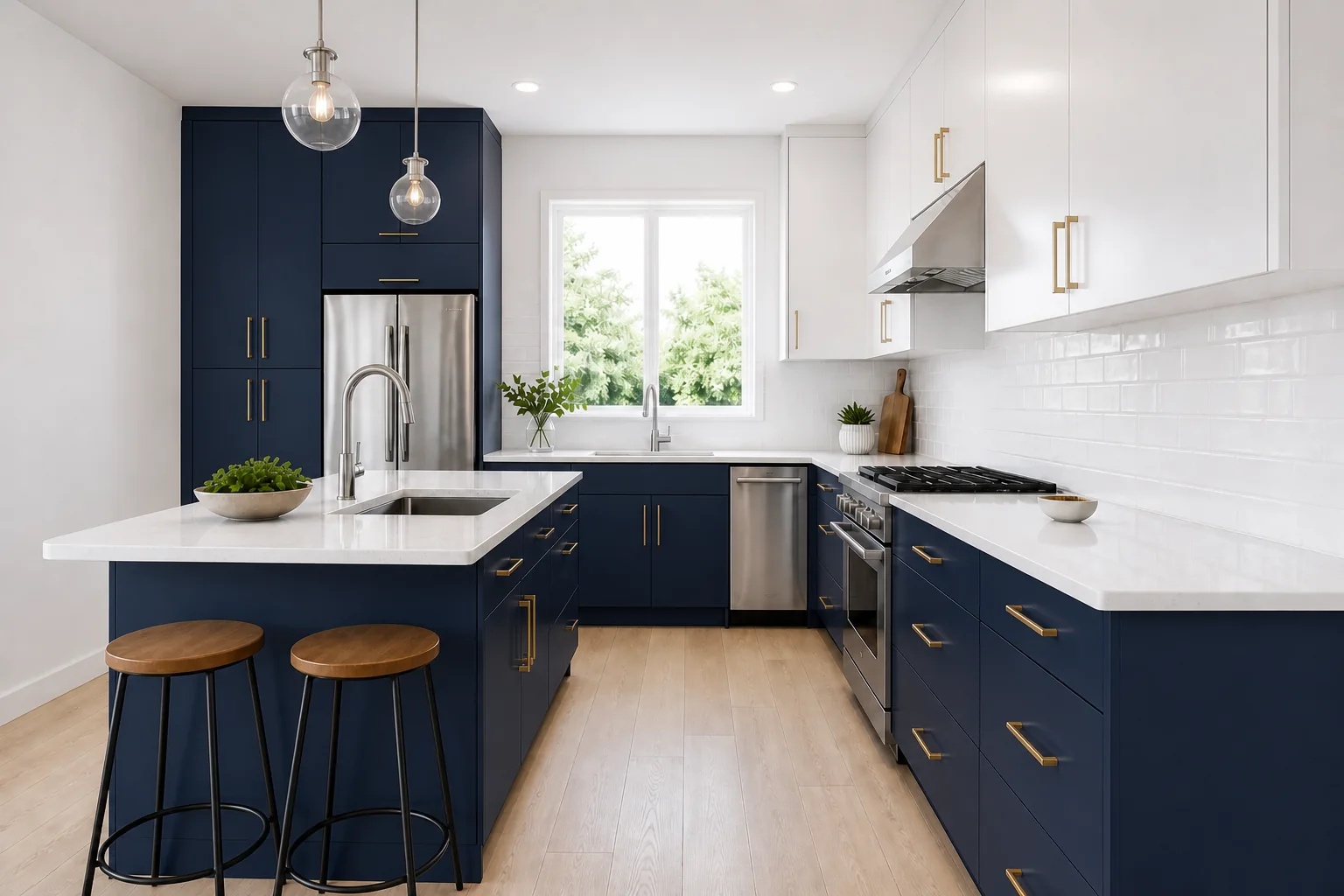
Example: navy cabinets with white uppers
Here, navy covers the lower cabinets and the tall bank around the refrigerator, while the upper cabinets stay white. The handles also change from silver to brass; the countertop and backsplash are white.
To try this with just the lower cabinets and your existing silver handles, add: “Keep the tall cabinets around the refrigerator white. Keep every existing handle silver and retain the cabinet door profiles.”
4. Fix unwanted changes
| What went wrong | What to do next |
|---|---|
The counter changed color or pattern | Upload the original again. Describe the countertop's color and pattern and ask to leave it unchanged. |
An appliance or cabinet door was redesigned | Start from the original and ask to recolor the existing cabinet surfaces without replacing anything. |
Cabinet end panels stayed the old color | Add the visible end panels or island sides to the surfaces you want recolored. |
The right surfaces changed, but the color is too strong | Edit that result again and ask for a softer version of the same color. |
For a counter that keeps changing, make the instruction concrete:
Recolor the cabinet surfaces muted blue-gray only. Keep the existing speckled brown countertop, including its pattern and edge, unchanged. Preserve the cabinet shapes, hardware, appliances, backsplash, and floor. Do not introduce new stone or change the lighting.
Adapt “speckled brown” to your real counter and run the new request on the original photo.
If color keeps spilling onto an adjacent surface, try an editor with manual selections so you can mark the cabinet area directly.
5. Preview two-tone cabinets with explicit zones
“Two-tone kitchen” leaves too much unspecified. Decide what happens to the upper cabinets, base cabinets, tall pantry units, and island before generating.
For example:
Make the lower perimeter cabinet surfaces muted petrol blue and the upper wall cabinets warm ivory. Keep the tall pantry unit and island in their existing wood finish. Preserve all cabinet shapes and hardware, glass panels, countertops, backsplash, appliances, flooring, and lighting. Change cabinet colors only.
Mention only zones present in your photo. For glass-front cabinets, recolor the frames, not the glass or contents. Name appliance panels separately if they need to match the surrounding cabinets.
If the zones are repeatedly confused, start with the lower cabinets alone. Add the upper-cabinet change only after the first result preserves the rest of the kitchen.
6. Choose paint samples from your shortlist
Once you prefer a direction, choose two or three manufacturer colors or cabinet finishes close to it.
Place samples vertically beside the countertop and backsplash. Compare them near a bright cabinet run and in a darker corner, in daylight and with your evening lights on. For a two-tone scheme, view both samples together.
Screen colors and room lighting can change how a shade looks. Benjamin Moore's sampling guide shows how to compare samples around the room under different lighting.
For the final choice, use a sample door or test panel to check the sheen and texture. Record the color name, code, product, and finish for your supplier or painter.
Frequently asked questions
Can I preview cabinet colors for free?
Yes. ImagineMyHouse includes limited trial credits after registration, with no credit card required. The Generate button shows the cost of each edit; packs and subscriptions are available if you need more credits.
Can I use an exact paint name or color code?
Yes, include it alongside a plain color description, such as “a muted blue-gray.” Use the preview to narrow your choice, then check the manufacturer's sample beside your countertop.
Can I keep the wood grain visible?
Ask for “a stained finish with the existing wood grain visible” and name the tone you want. Check that the result retains the grain; for an opaque painted look, specify solid paint instead.
What if I am also changing the countertop and backsplash?
Try complete combinations with our kitchen redesign guide. Save a cabinet-only option too, so you can compare a simple repaint with the larger renovation.
Try a cabinet color in your own kitchen
Upload your photo and describe one cabinet-color change, with clear instructions for the surfaces you want to keep.