Edit with everyday language
Write a direct request such as “make the lower cabinets navy” or “replace the pendant with a black metal fixture.”
Upload an image, name the object, surface, color, material, or detail you want to change, and tell the AI what should stay untouched. No masks, layers, or manual retouching tools required.
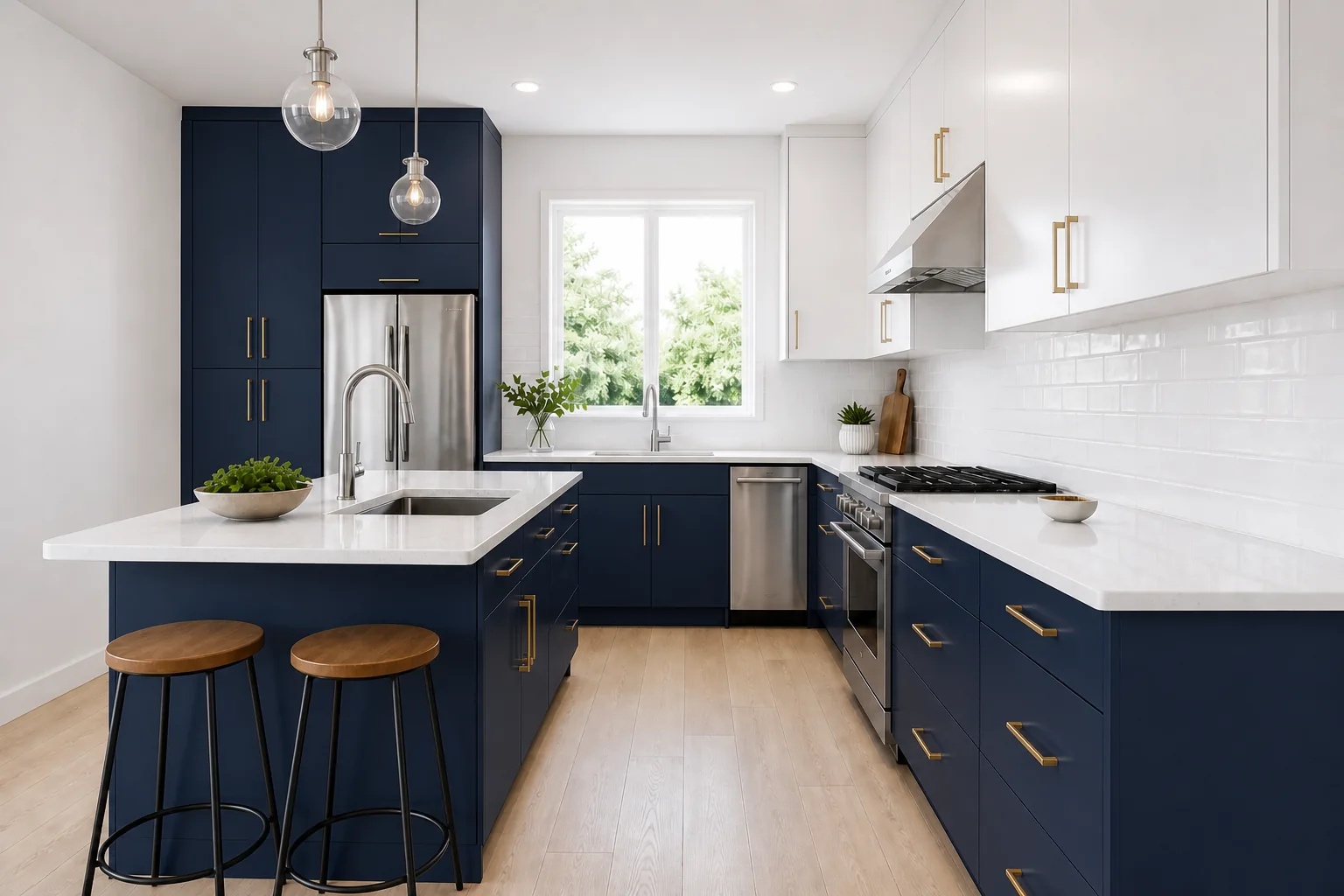
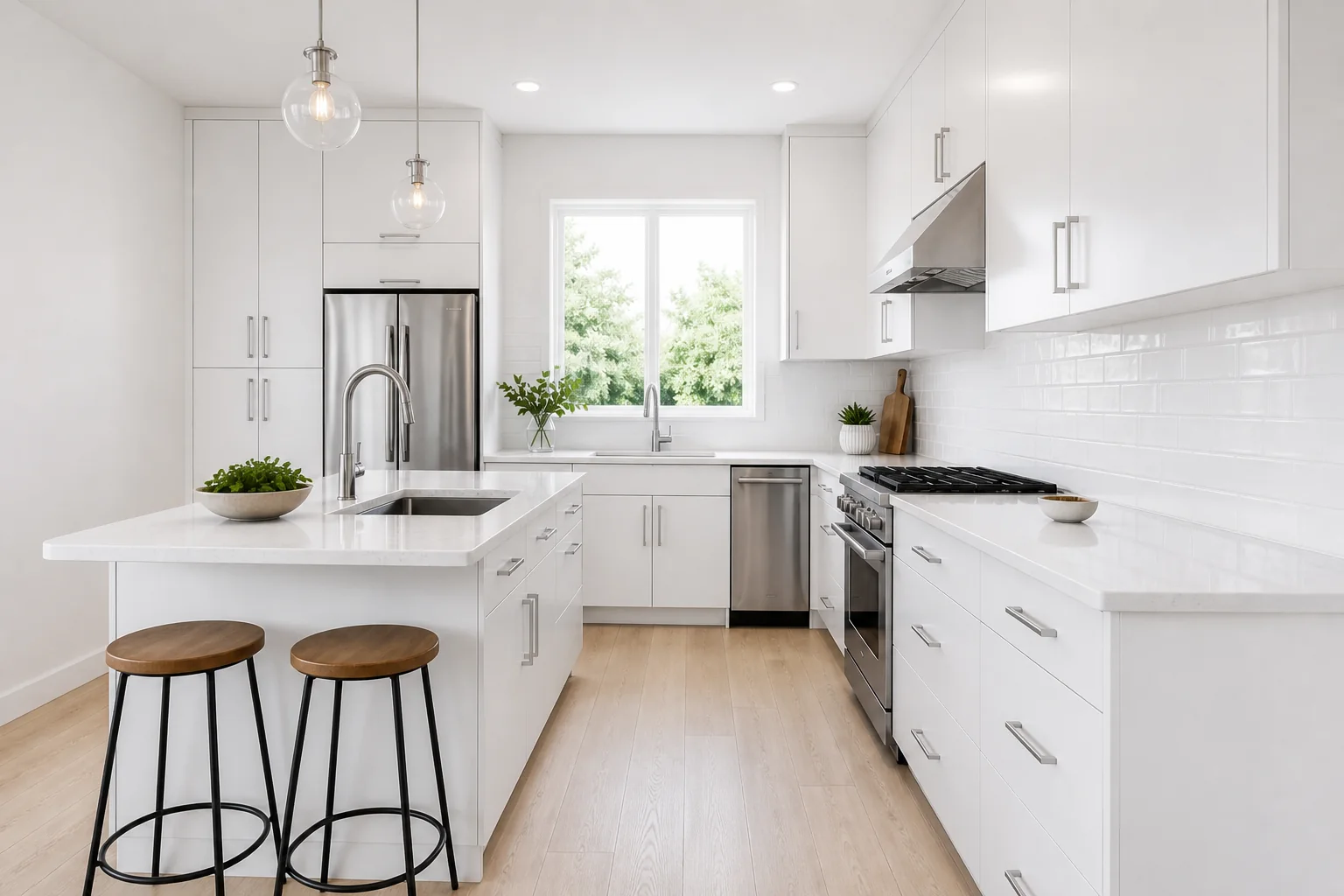
Describe the target, the requested change, and anything that must remain as it is. ImagineMyHouse applies that instruction to the uploaded image instead of starting a full redesign.
Write a direct request such as “make the lower cabinets navy” or “replace the pendant with a black metal fixture.”
Target a visible object, finish, color, material, or area without asking the AI to restyle the complete scene.
Focused prompts help limit the requested change while retaining the surrounding composition, objects, materials, camera angle, and lighting.
The cabinet-color comparison above is only one kind of edit. Drag these two examples to inspect a surface change and a single furniture replacement without redesigning the surrounding room.
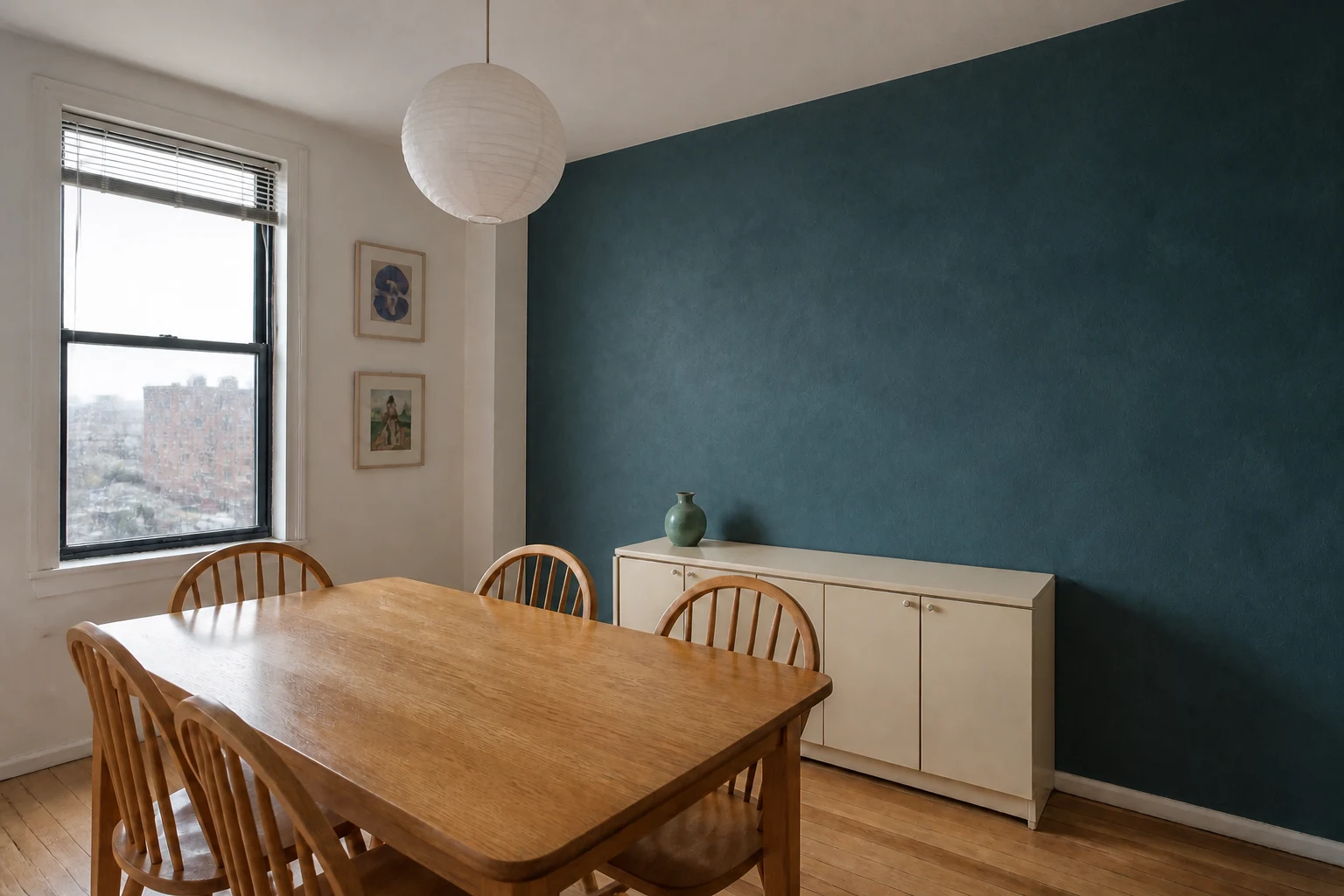
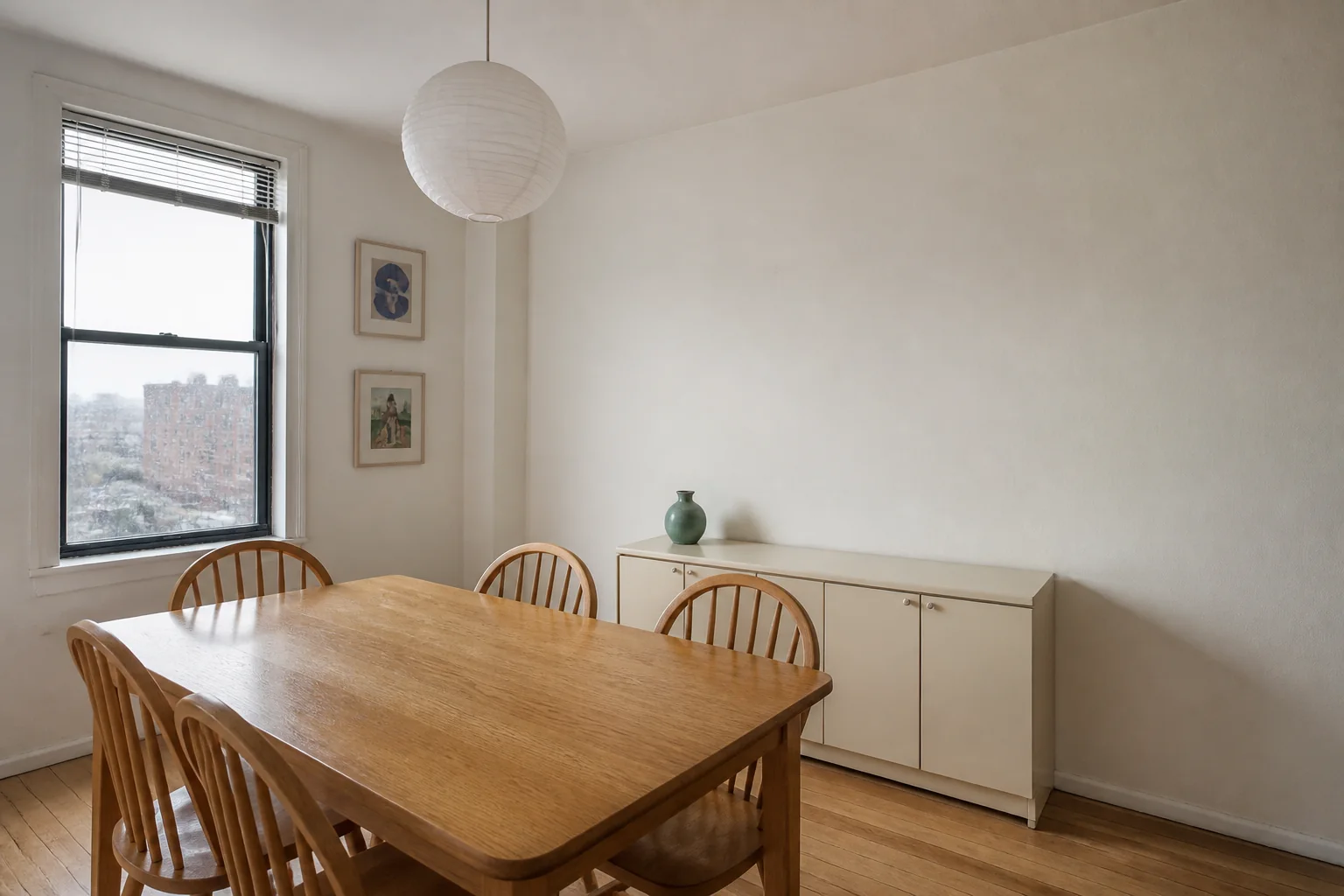
A plain painted dining-room wall becomes deep petrol blue-green limewash while the table, chairs, sideboard, window, lighting, and camera remain in place.
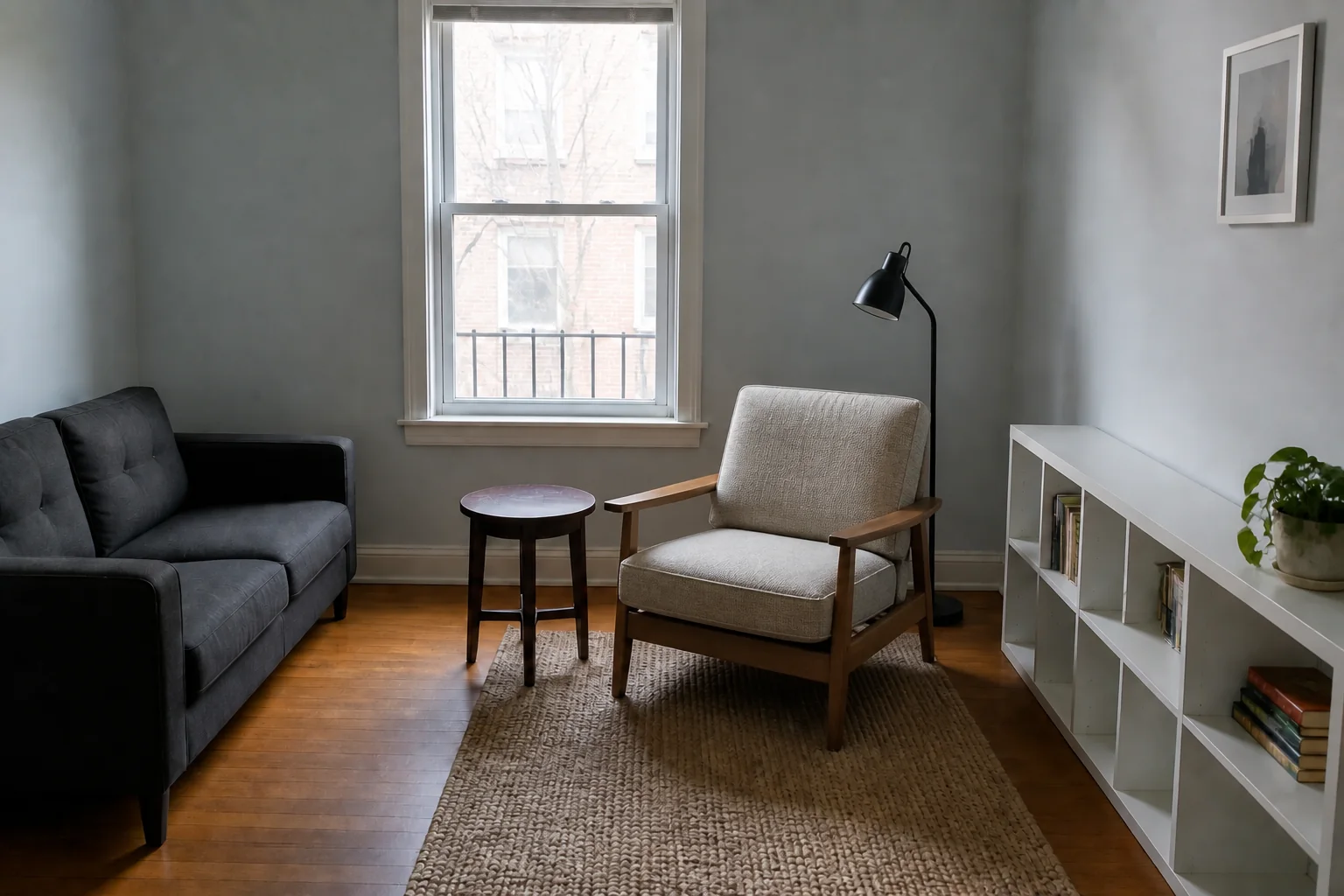
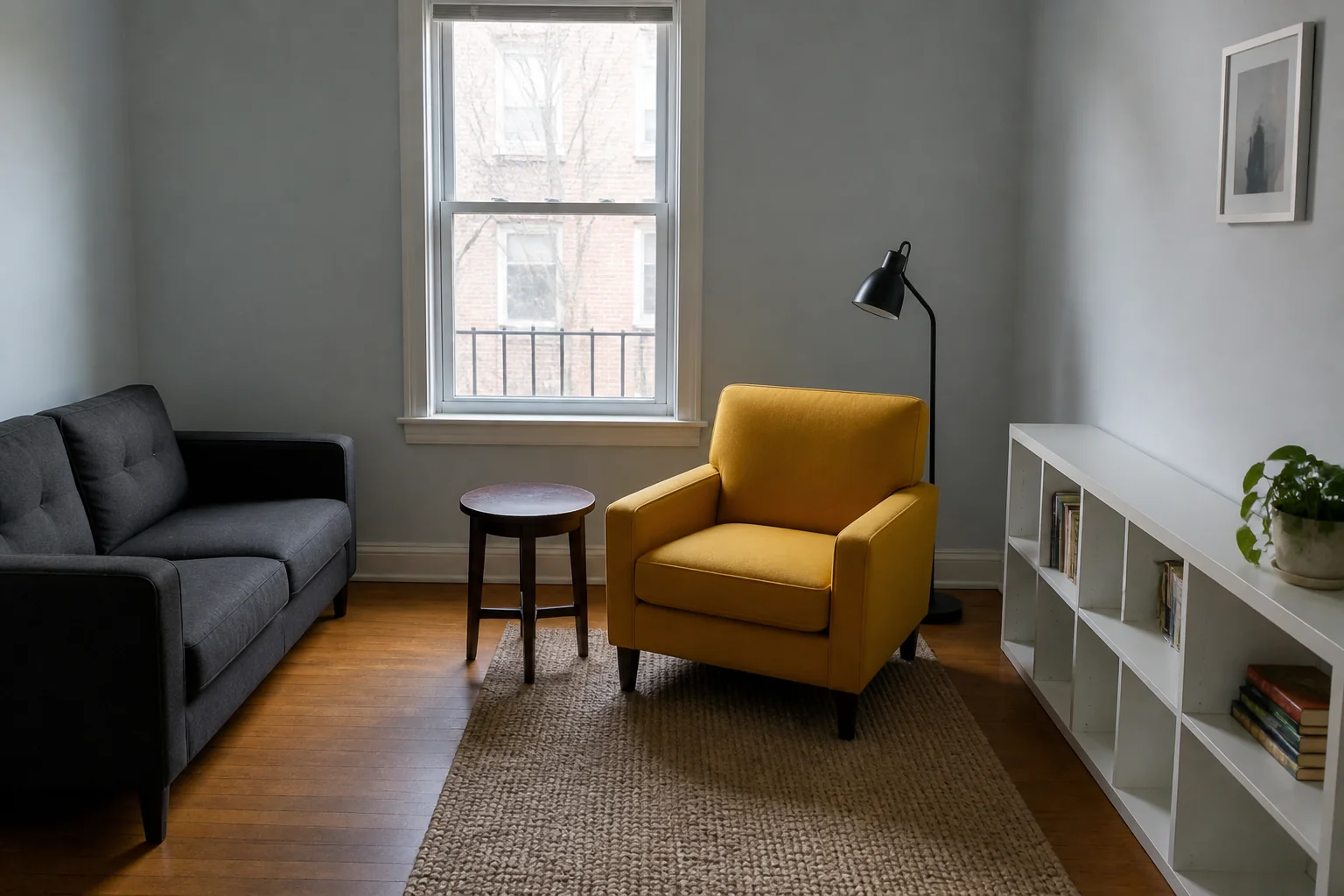
A mustard upholstered armchair is swapped for an oak-frame lounge chair while the loveseat, lamp, table, shelves, window, and room stay recognizable.
Use it when you already like most of an image and need one clear, controlled change rather than a new design direction.
Preview another cabinet color, wall finish, countertop, floor tone, tile, or exterior material before making a physical change.
Test a different light fixture, furniture finish, piece of decor, trim treatment, or other visible feature in its existing context.
Continue from an ImagineMyHouse result you already like and adjust the one detail that still does not feel right.
Choose a JPG, PNG, or WebP image up to 10 MB, including an original photo or a design you generated earlier.
Name the exact target and desired result. Add a short preservation note when a nearby color, object, or material must remain unchanged.
Review the edit against your source, download the result you prefer, or use it as the starting point for another targeted instruction.
An AI image editor changes an uploaded photo from a written instruction. With ImagineMyHouse, you describe a focused edit—such as changing a cabinet color or replacing a light fixture—and the system generates an updated image.
No. The workflow is entirely prompt-based: upload a photo and describe the target and requested change in plain language without manual brushes or selection tools.
You can ask to recolor or replace visible objects, change finishes and materials, add or remove a named detail, or refine a specific part of an existing design.
Focused prompts are designed to limit the edit to the target you name while keeping the surrounding perspective, lighting, architecture, and objects recognizable. Review the result and refine the prompt when a nearby detail also changes.
Yes. A design generated with Interior Design, Exterior Design, Virtual Staging, or another ImagineMyHouse workflow can be used as the source for a more focused follow-up edit.
The editor accepts JPG, PNG, and WebP images up to 10 MB. A clear, well-lit source with a visible target generally gives the model more useful context.
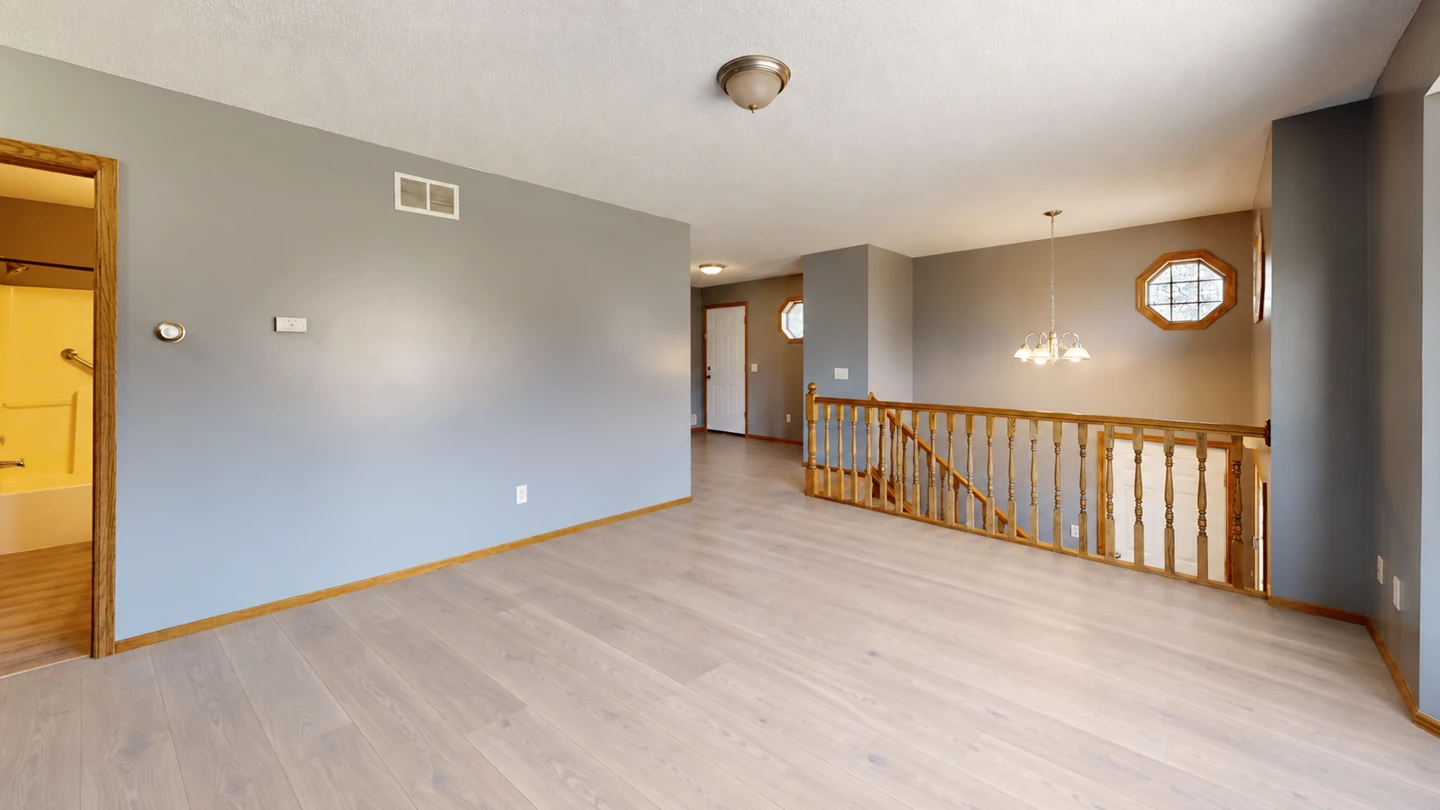
Change the installed floor material without redesigning the room.

Choose a paint color and preview all walls or one accent wall.

Try a seasonal tree, wreath or festive table in your existing space.
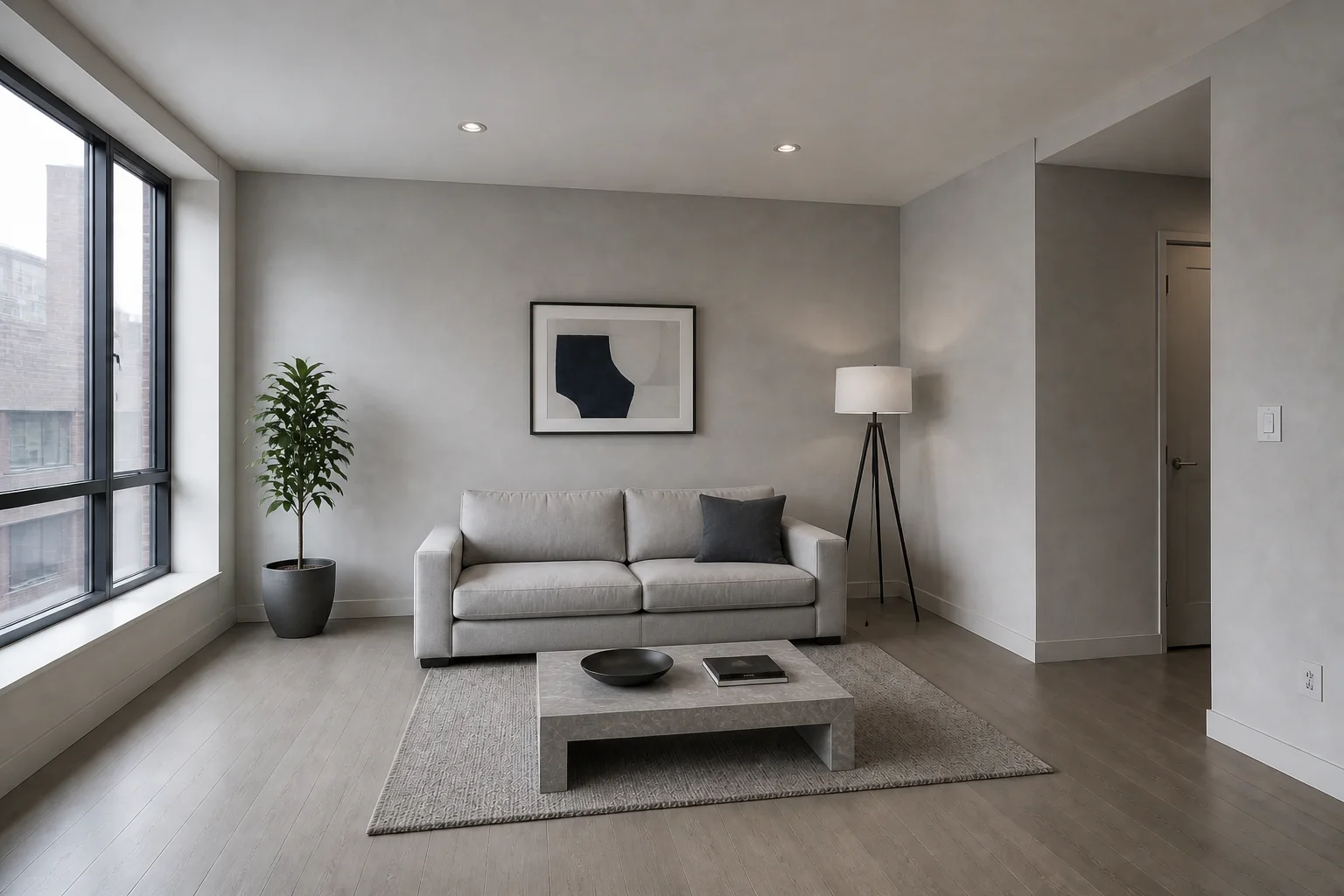
Apply the look of any reference image while preserving your source composition.