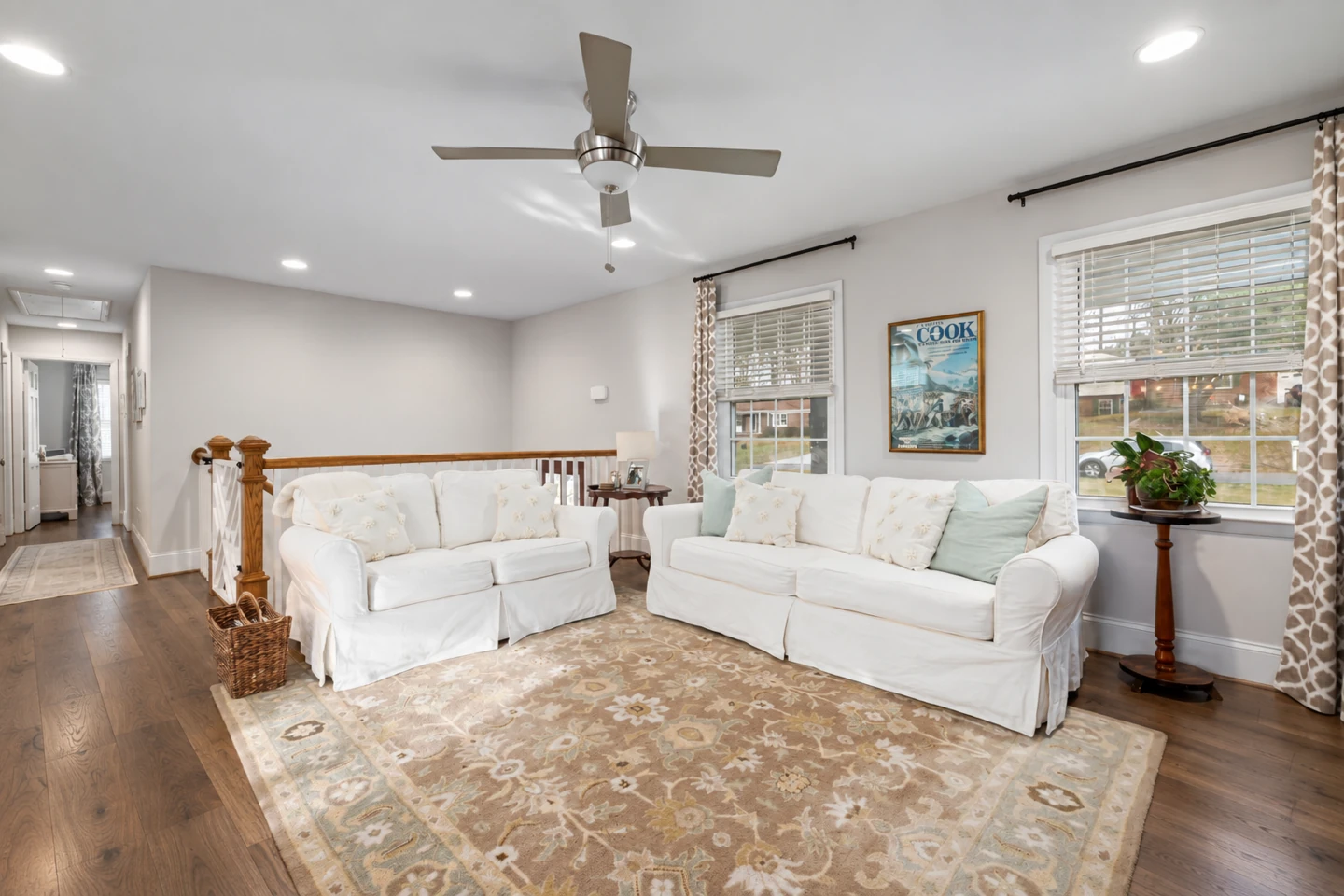
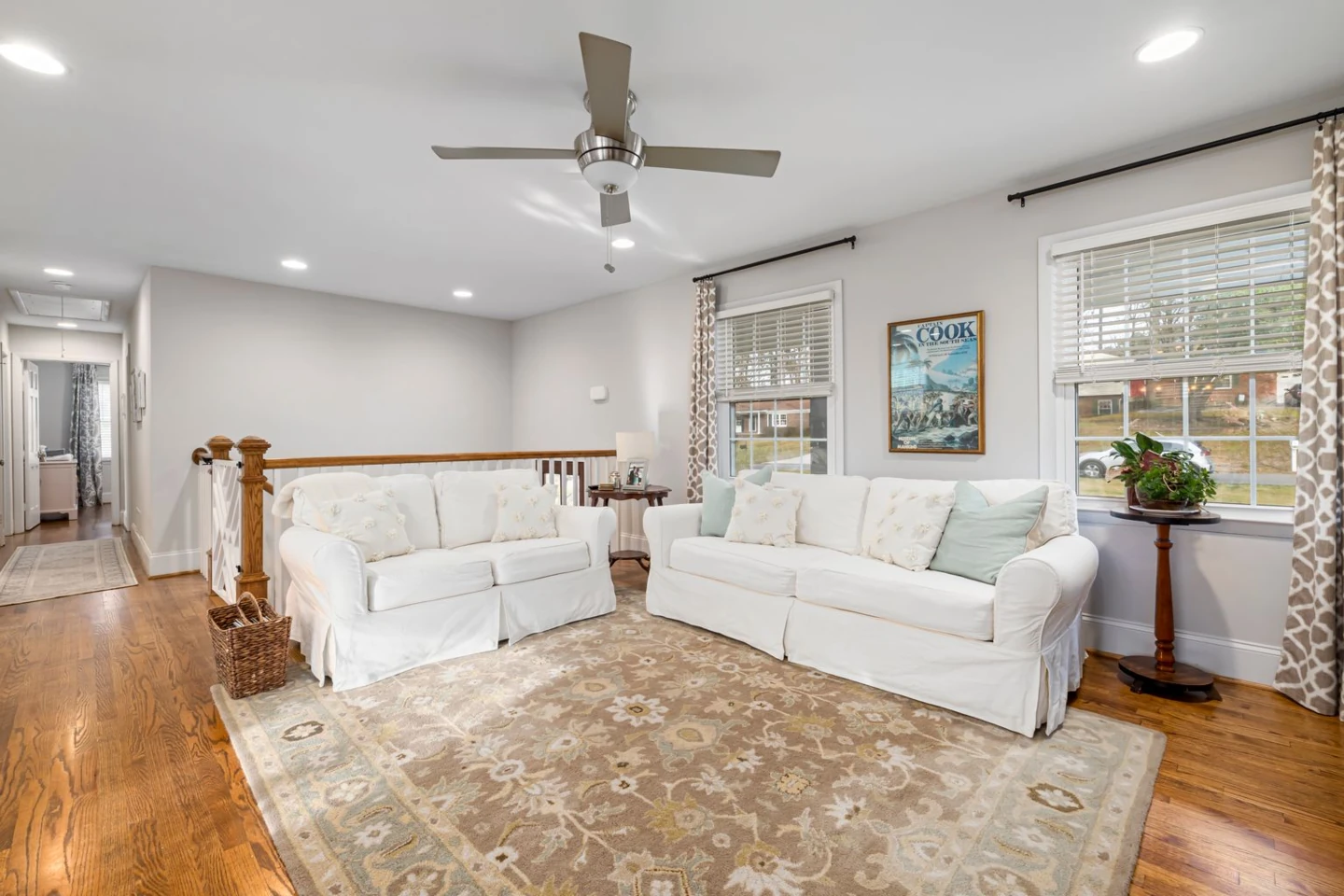
A deeper wood tone around existing furniture
Walnut gives this furnished sitting room a different foundation. The white sofas, patterned rug and original trim remain the points of comparison.
Upload a room photo and compare wood, tile, stone or carpet with the furniture and finishes you already have.
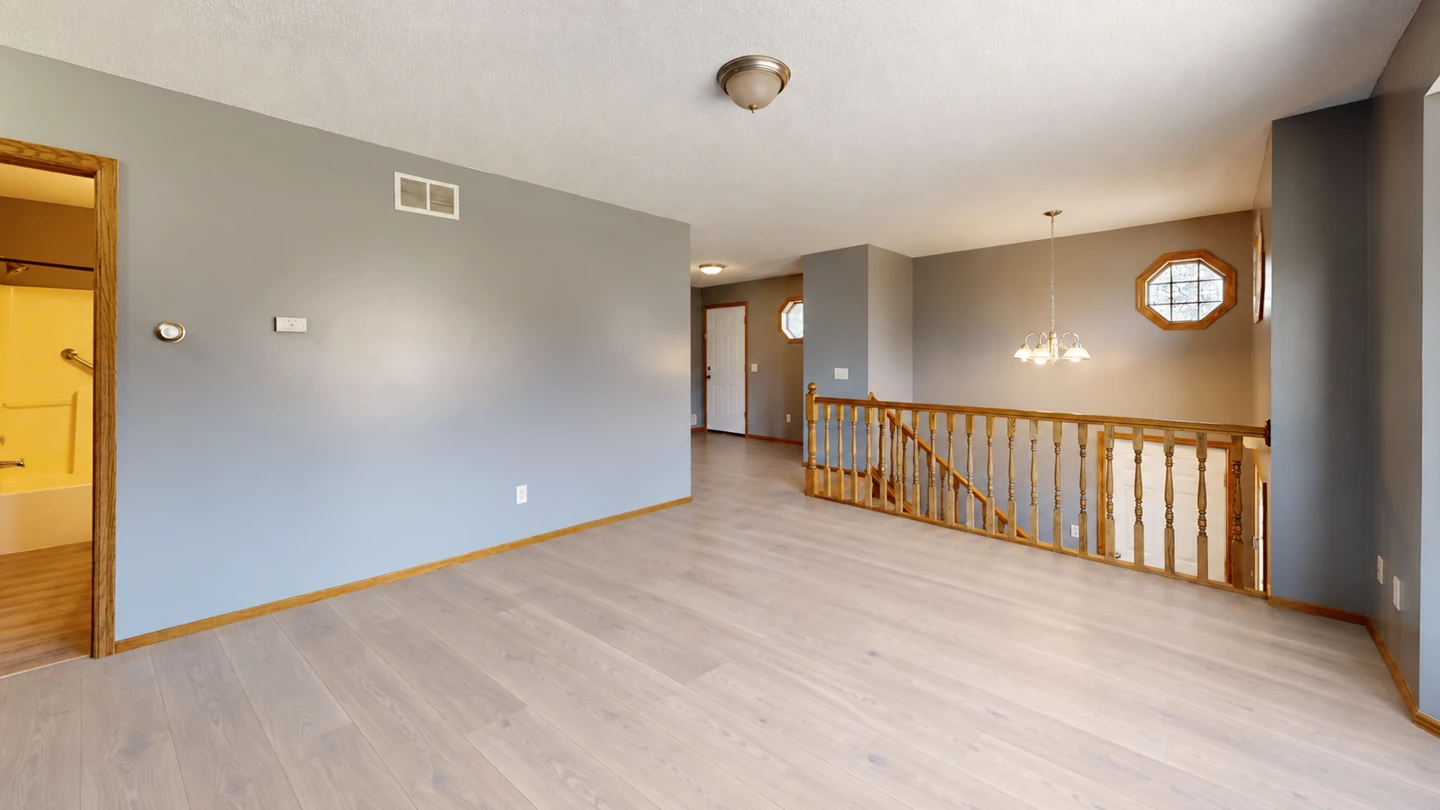
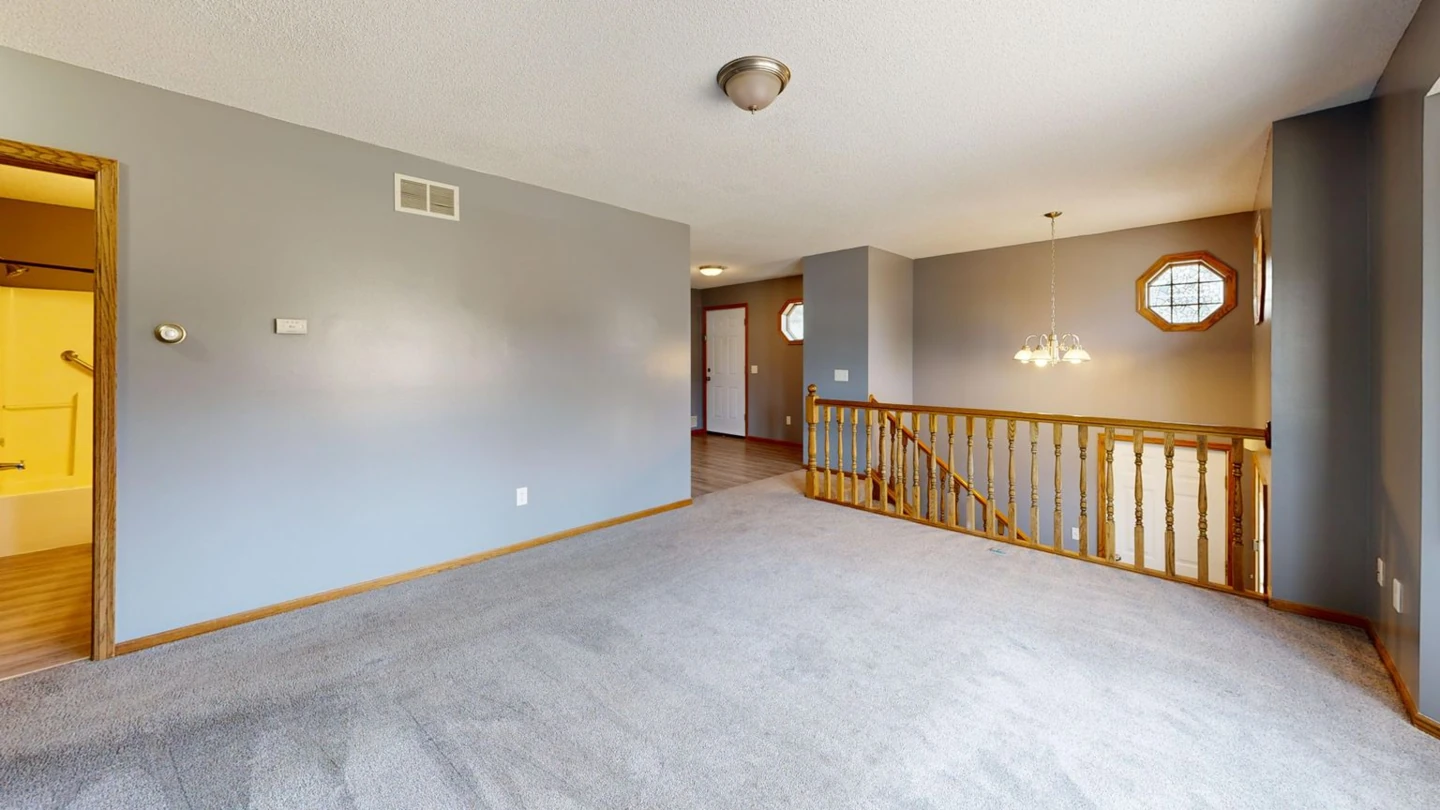
Explore realistic hardwood, natural stone, tile, and carpet makeovers across furnished and empty rooms.
Walnut gives this furnished sitting room a different foundation. The white sofas, patterned rug and original trim remain the points of comparison.
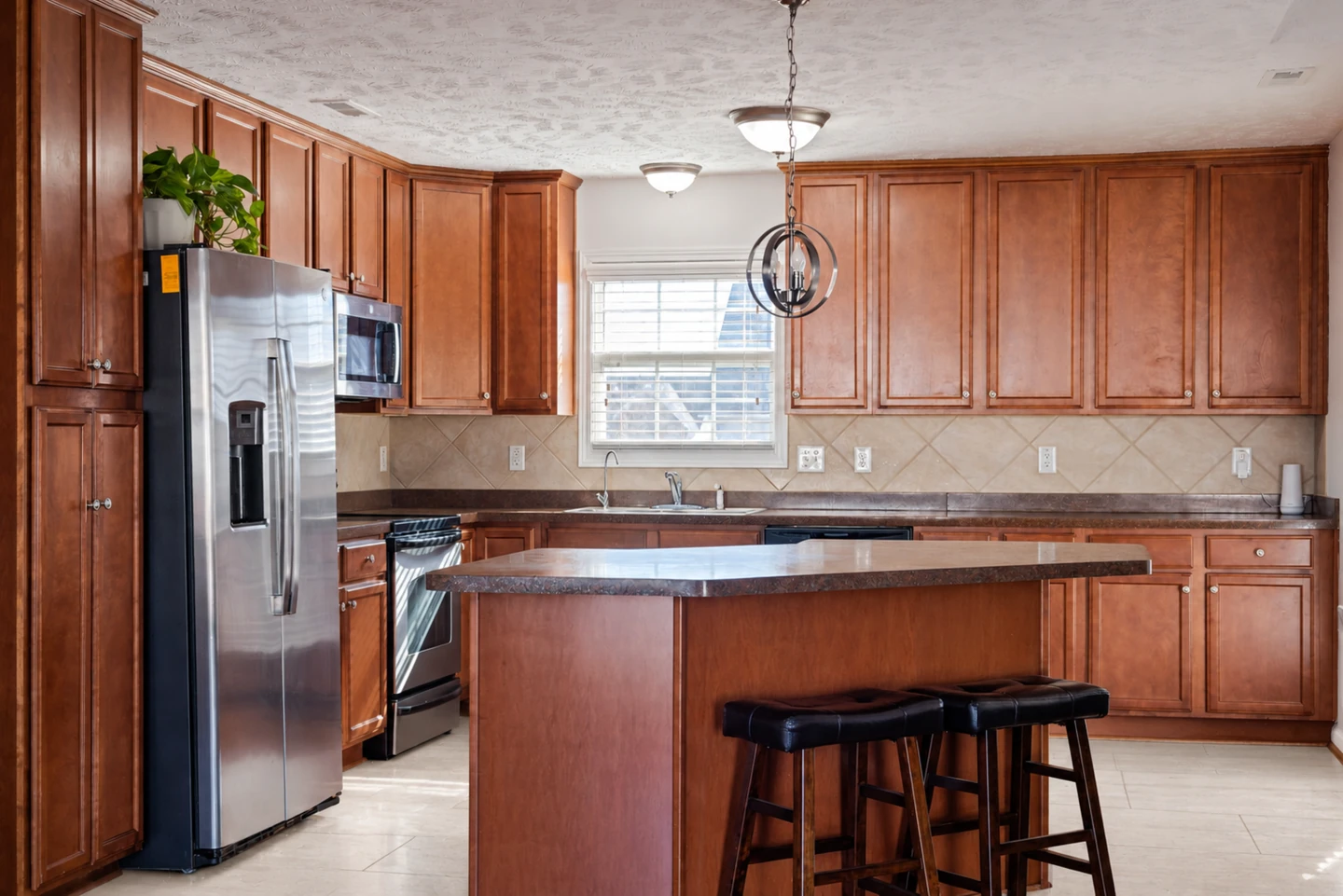
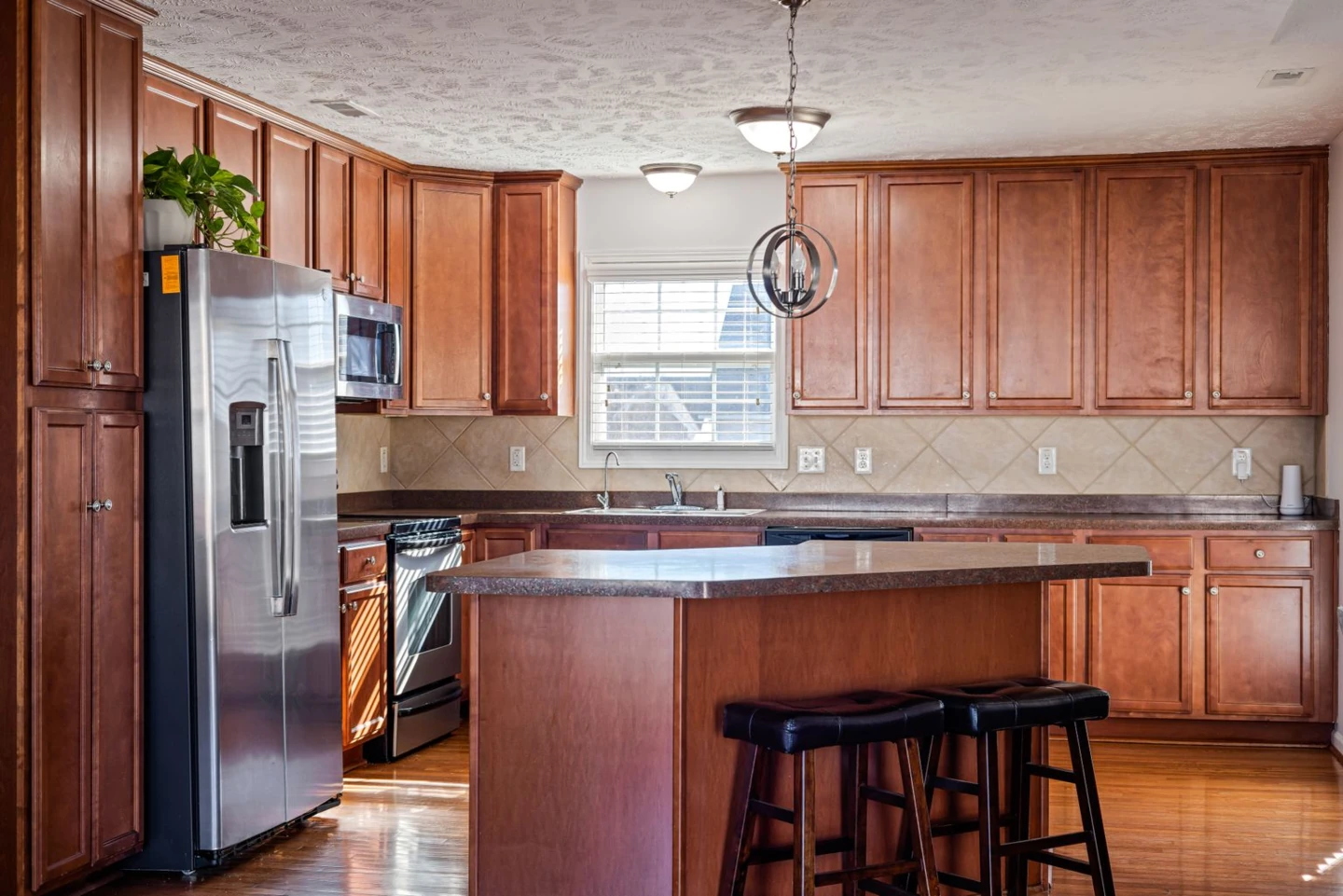
Pale limestone introduces a quieter surface beneath the existing kitchen island and stools. Compare the new floor against the cabinets without replacing the whole kitchen.
A focused flooring preview without a whole-room makeover.
Try light oak, walnut, porcelain tile, limestone, concrete or carpet. Use Details to describe a different tone or finish within your chosen direction.
Compare new floor textures against existing cabinets, seating, and wall colors. The tool intelligently updates the floor surface while keeping furniture and decor intact.
Compare wood grains, tile patterns, and warm or cool undertones visually to narrow down your choices before ordering physical flooring samples.
Useful comparisons for the room you are actually updating.
See how an empty or furnished room might look with a hard floor instead of wall-to-wall carpet, before arranging removal or installation.
Compare a lighter stone or tile floor against kitchen units you plan to keep. Focus on contrast and undertones without a cabinetry redesign.
Generate separate oak and walnut directions from the same photo. Keep the original image as your reference when judging brightness and contrast.
Choose a clear JPG, PNG or WebP with a useful amount of floor visible. Include furniture legs and wall edges so the scene has perspective and scale.
Pick one of the six flooring directions. Add an optional note about color, finish or a particular area; no manual floor tracing is required.
Sign in, check the displayed credit cost and generate your preview. Compare it with the original, then use real samples to make a purchase decision.
Upload a photo of your room, choose a material like oak or porcelain tile, and AI seamlessly swaps the floor surface while maintaining realistic shadows, reflections, and perspective.
You can preview light oak, rich walnut, modern porcelain tile, natural limestone, polished concrete, and plush carpet. You can also specify custom stains, matte or gloss finishes, and plank layouts in Details.
Yes. The tool is engineered to preserve sofas, dining tables, kitchen islands, and area rugs, rendering the new material naturally around furniture legs and room contours.
You can choose from our curated material presets and use the Details prompt to describe specific plank widths, herringbone patterns, tile sizes, or particular color undertones.
No. This tool changes the floor's appearance in an existing photo. Use the Wall Color Visualizer for a separate paint preview. Try wall colors
Use the visualizer to evaluate overall color balance, room brightness, and contrast with your furniture. Once you find a look you love, bring the image to your flooring retailer to match samples.
Yes. You can browse examples and choose settings before signing in. Generation uses the credit amount displayed in the tool; current options are on Pricing. View pricing